Found a Reel you want to keep — a recipe, a workout, a tutorial or a clip from your own account? Instagram lets you save Reels inside the app, but that bookmark vanishes if the creator deletes the post, you can’t watch it offline, and you can’t move the file anywhere else.
In this guide you’ll learn exactly how to download Instagram Reels in HD to your phone using Universal Video Downloader. It takes less than a minute and works for Reels, video posts and Stories from public accounts.
Quick answer: Open the Reel in Instagram → tap Share (paper-plane icon) → Copy link → open Universal Video Downloader → paste the link → pick a quality → tap Download. The Reel is saved to your gallery.
Why download Instagram Reels?
Instagram’s built-in “Save” button only creates a bookmark inside the app. Downloading the actual video file gives you a lot more freedom:
- Watch offline — on a flight, on the metro or anywhere with poor signal, without using mobile data.
- Back up your own content — keep an original copy of Reels you created in case you lose access to your account.
- Keep tutorials forever — recipes, workouts and how-to Reels stay on your phone even if the creator deletes them.
- Share anywhere — send the file over WhatsApp, Telegram or email to friends who don’t use Instagram.
- Edit and remix with permission — use your own clips in compilations or presentations.
What you need before you start
- Universal Video Downloader installed on your device — get it on Google Play.
- The Instagram app or instagram.com open in a browser.
- A Reel from a public account. Reels from private accounts can’t be downloaded.
- A little free storage space — a one-minute HD Reel is usually 10–30 MB.
How to download Instagram Reels: step by step
Step 1: Open the Reel on Instagram
Launch Instagram and go to the Reel you want to save. It can be in your feed, the Reels tab, Explore or on someone’s profile. Make sure the account is public — if you see a lock icon on the profile, the Reel can’t be downloaded.
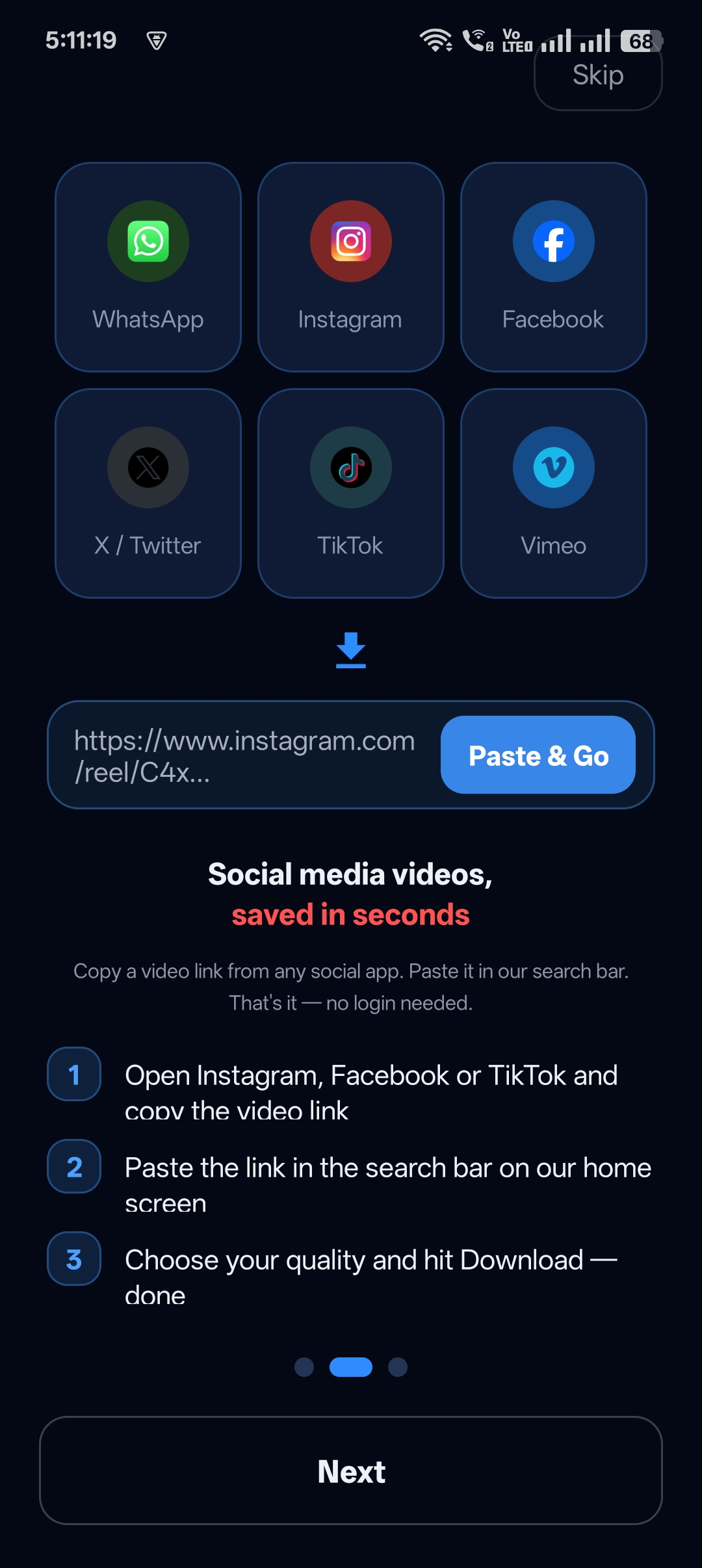
Step 2: Copy the Reel link
Tap the paper-plane (Share) icon below the Reel and choose Copy link. The link looks like instagram.com/reel/….
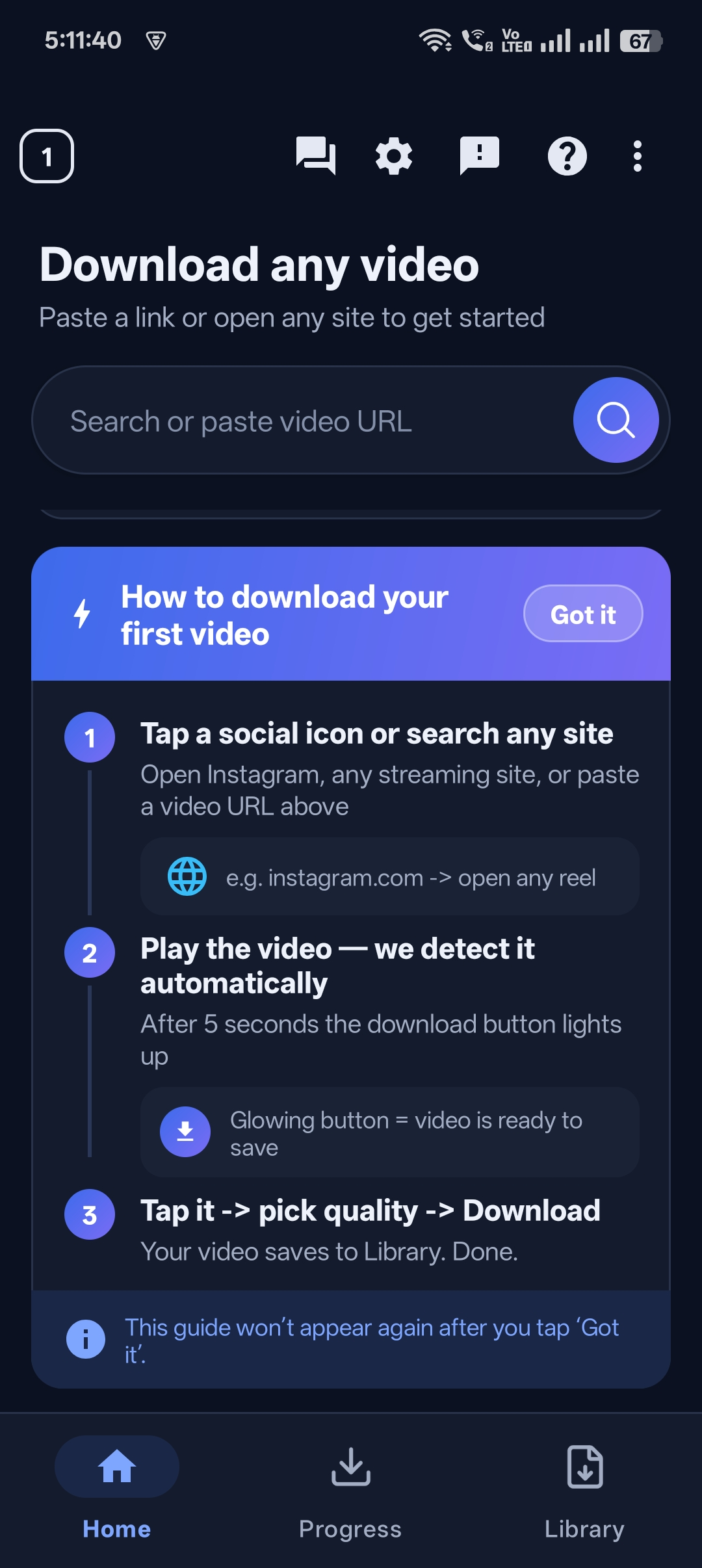
Step 3: Paste the link into Universal Video Downloader
Open Universal Video Downloader. The app often detects the copied link automatically — if not, tap the link box, paste it and tap Search. The app fetches the Reel’s preview, title and available qualities in a few seconds.
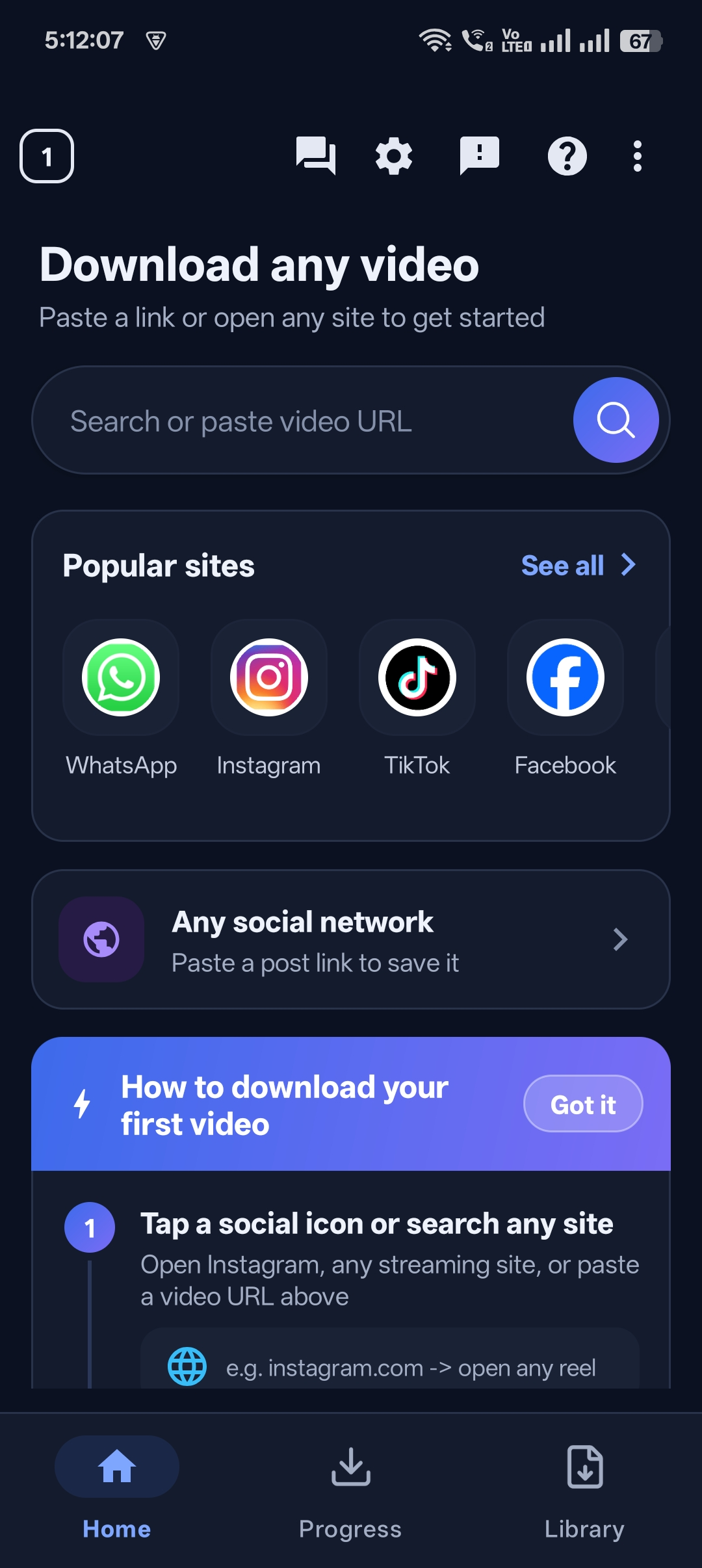
Step 4: Choose the video quality
Pick the resolution you want. Choose the highest option (HD / 1080p) for the sharpest video, or a lower one to save storage. Want just the song or voice-over? Choose the audio (MP3) option instead.
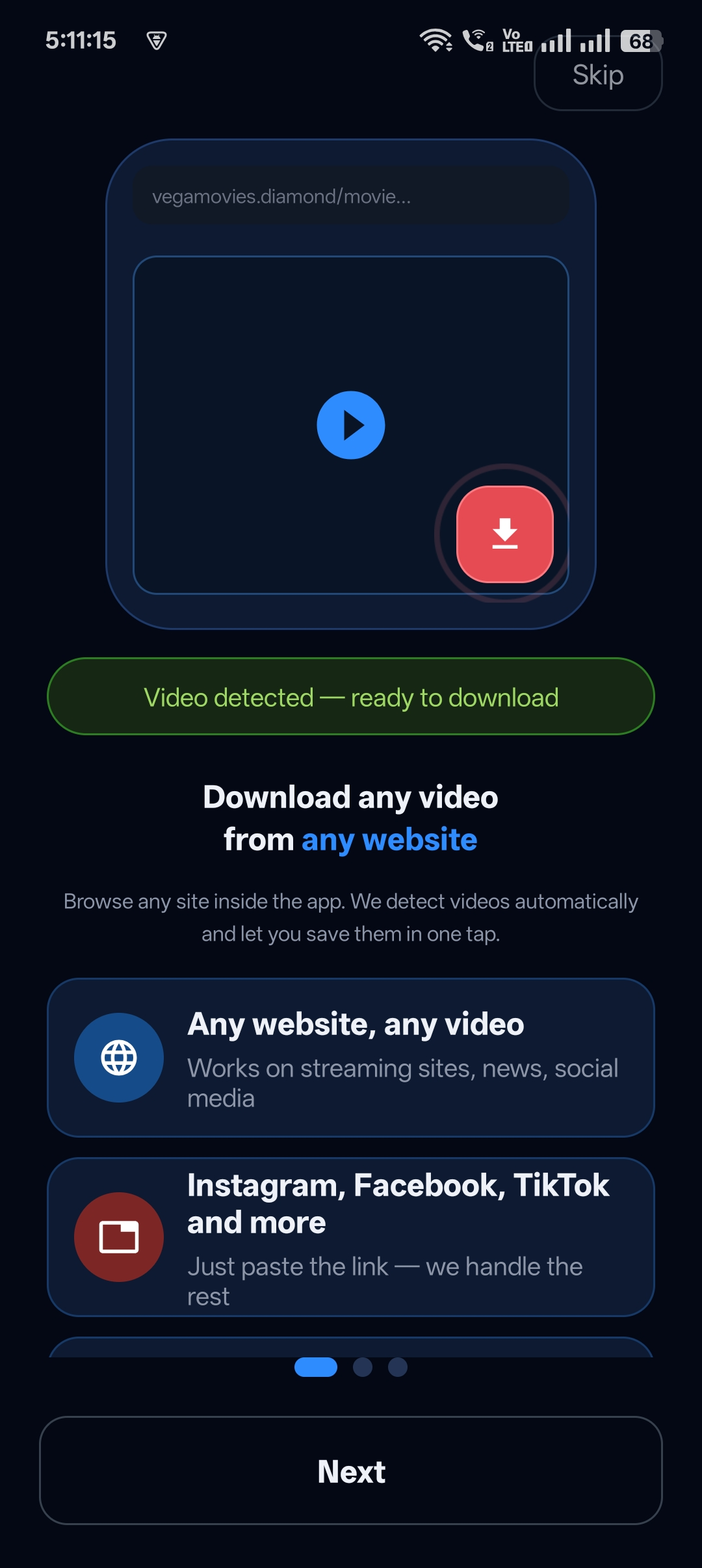
Step 5: Download and watch offline
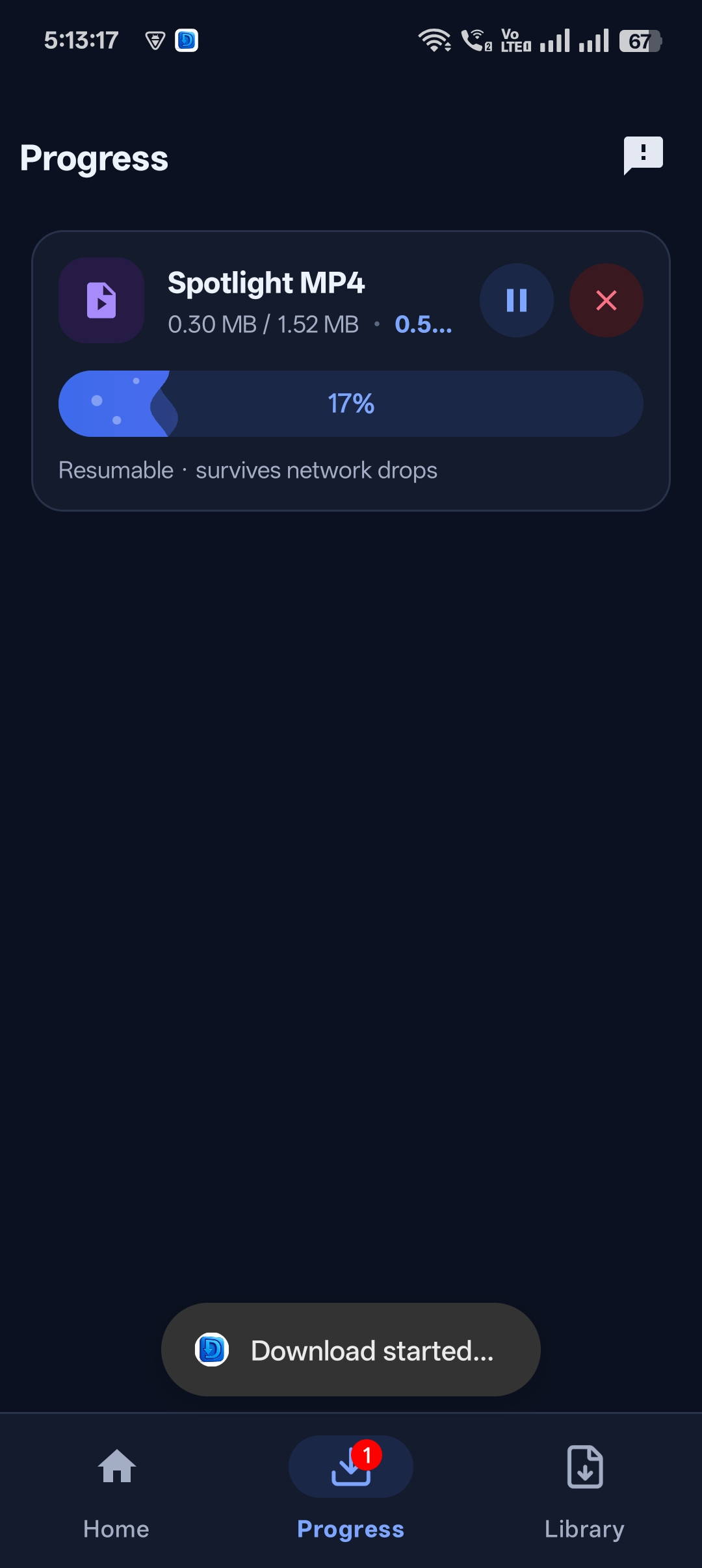
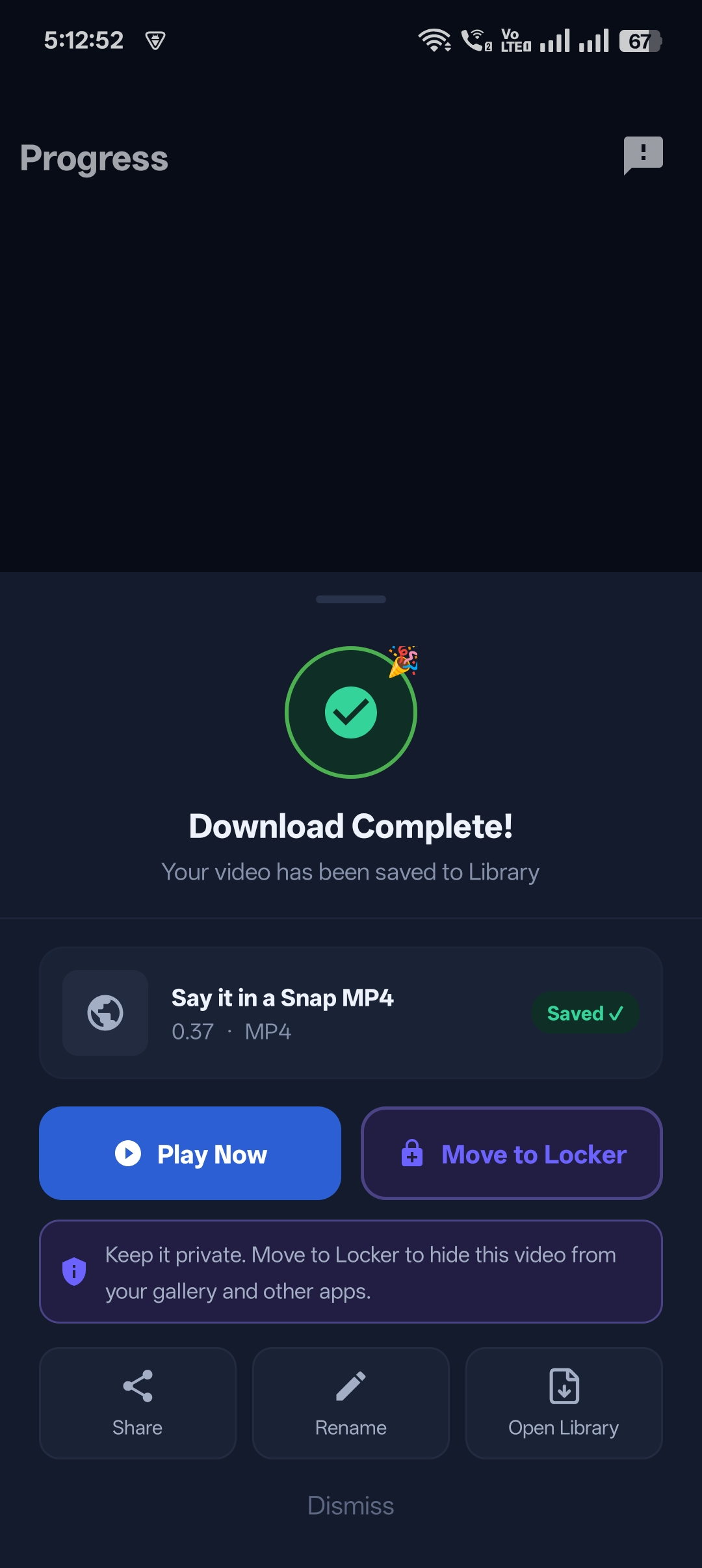
Tap Download. You’ll see the progress bar, and when it finishes the Reel is saved to your phone’s Gallery and to the app’s library, ready to watch offline.

Get Universal Video Downloader
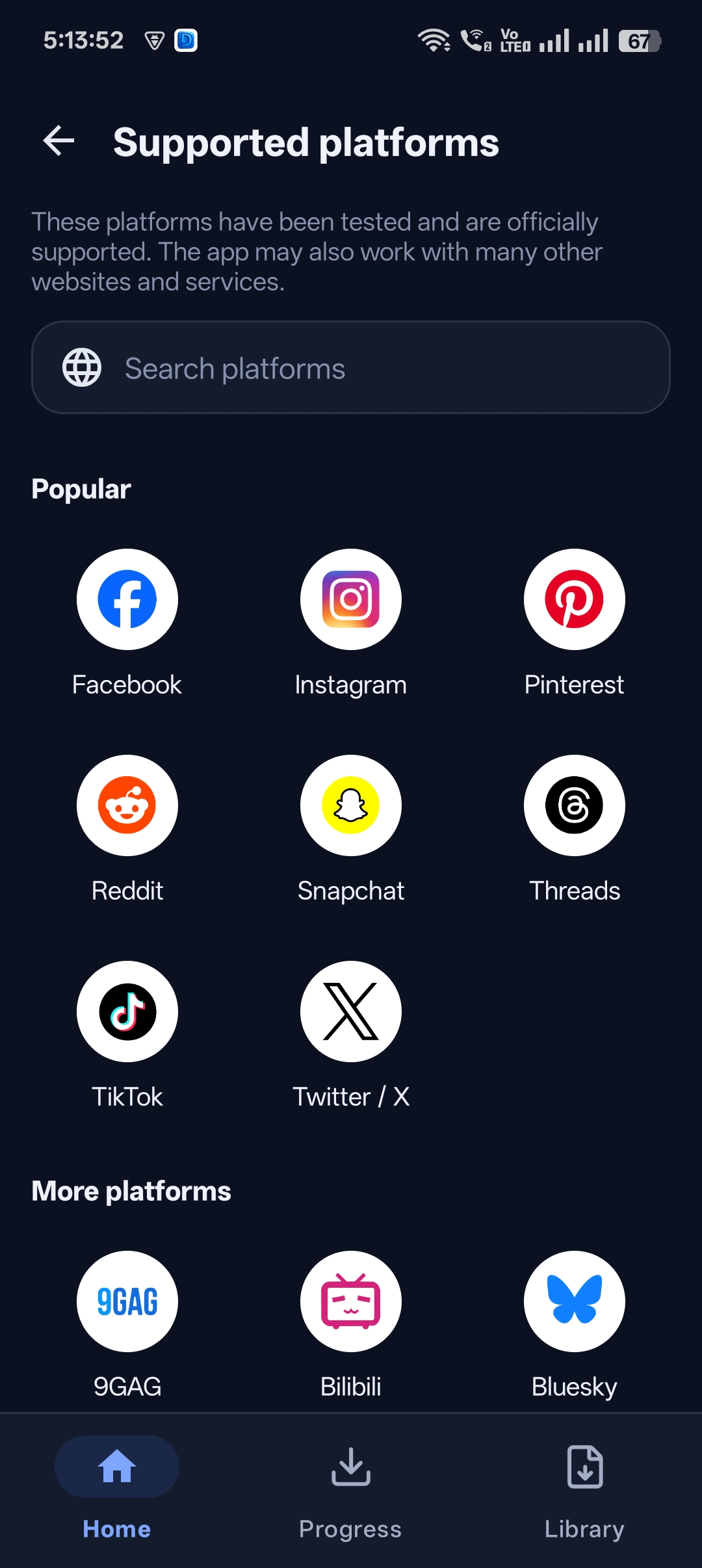
Download videos from 3786+ websites in HD and keep private ones in a PIN-locked folder. Free on Google Play.
Get it on Google PlayHow to copy a Reel link on any device
On Android
Open the Reel, tap the paper-plane icon and choose Copy link. You can also tap the three dots (⋮) in the corner and select Copy link.
On iPhone
Open the Reel, tap the paper-plane icon, then tap Copy link in the share sheet. Then paste it into Universal Video Downloader.
From a mobile browser
Watching on instagram.com in Chrome or Safari? Tap the three dots (…) and choose Copy link, or copy the URL from the address bar, then paste it into Universal Video Downloader.
Download other Instagram videos: posts, Stories and Highlights
The same copy-and-paste method works for most public Instagram video content:
- Video posts — copy the post link the same way as a Reel.
- Carousel videos — paste the post link and pick the video you want from the list.
- Stories — open the Story from a public account, tap Share → Copy link. Stories expire after 24 hours, so save them quickly.
- Highlights — copy the Highlight link from a public profile.
Tips for the best quality downloads
- Always choose the top resolution if storage allows — you can’t add quality back later.
- Use Wi-Fi for long or 4K videos to save mobile data and download faster.
- Copy the link from the original post, not from a re-share, to get the creator’s original upload.
- Update the app regularly — Instagram changes often and updates keep downloads working.
Pro tip: Download Reels you created yourself before deleting or archiving them. It is the easiest way to keep a backup of your content.
Instagram Reel not downloading? Quick fixes
| Problem | Fix |
|---|---|
| “Video not found” error | The account is probably private or the Reel was deleted. Check that the link opens in a browser without logging in. |
| Link not detected | Copy the link again from the Share menu, then paste it manually into the link box. |
| Download stuck at 0% | Check your internet connection, switch between Wi-Fi and mobile data, then retry. |
| Only low quality available | Some Reels are uploaded in low resolution. The app always lists the best quality the source provides. |
| Video saved but not in Gallery | Open the app’s library and use “Open folder”, or allow the storage permission in your phone settings. |
Still stuck? Email us at help@universalvideodownloader.com with the Reel link and we’ll take a look.
Is it legal to download Instagram Reels?
Downloading a Reel for personal, offline viewing is generally acceptable. Problems start when you re-upload someone else’s Reel, remove credit, or use it commercially without permission — that can infringe copyright and break Instagram’s Terms of Use.
Respect creators: only download content you own or have permission to use, and always credit the original creator when you share. This is general information, not legal advice.
Frequently asked questions
Can I download Instagram Reels without an app?
Yes, there are online downloader websites, but they are often slow, full of ads and limited to lower quality. Universal Video Downloader is faster, supports HD and keeps all your downloads organised in one library.
Does the creator know if I download their Reel?
No. Instagram does not notify creators when someone copies a link or downloads a Reel through a third-party app. Please still respect their work and credit them if you share it.
Do downloaded Reels include the music?
Yes. The downloaded video includes the original audio. If you only want the sound, choose the audio (MP3) option before downloading.
Why can’t I download a Reel from a private account?
Private account content is only visible to approved followers, so it is not publicly accessible. Universal Video Downloader respects privacy and only works with public content.
Where are downloaded Reels saved?
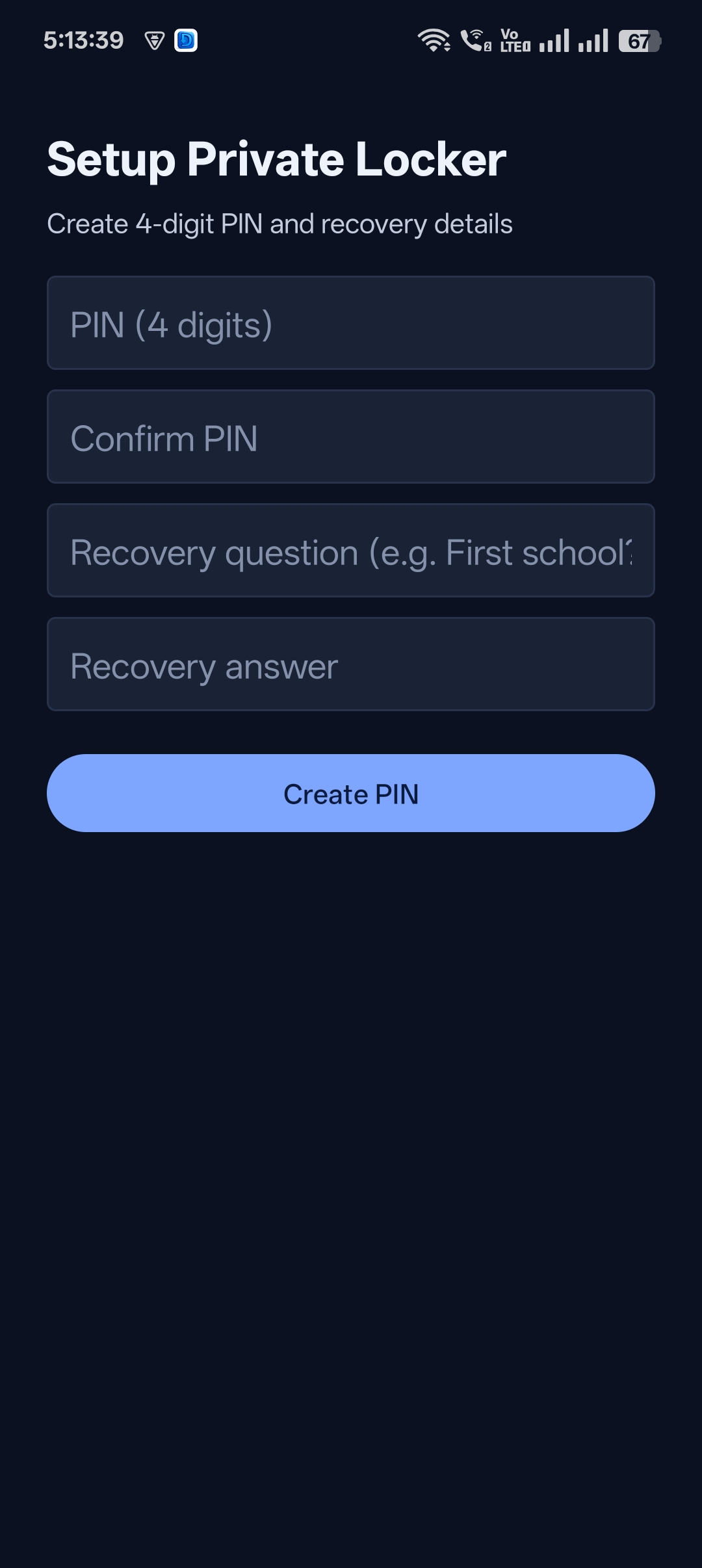
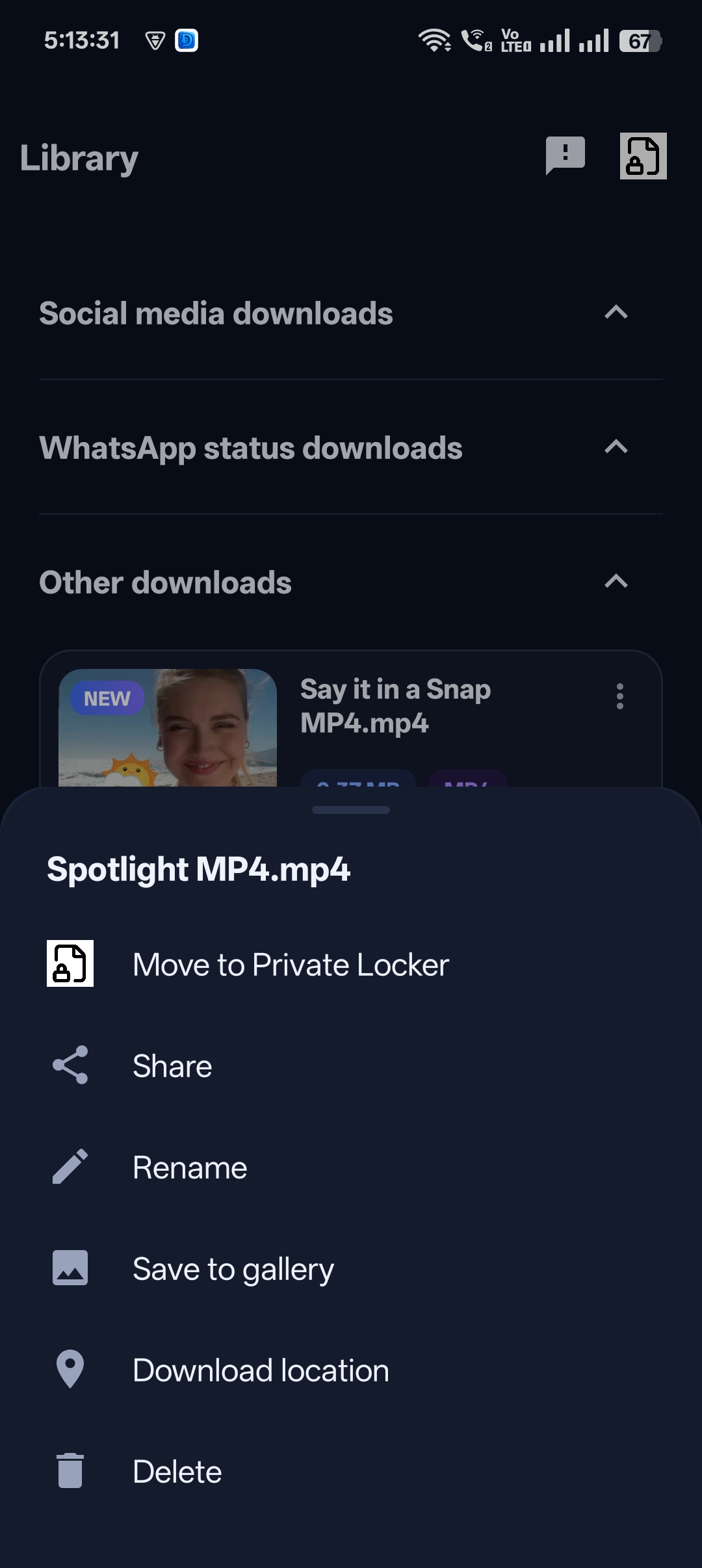
They appear in the app’s Library and can be saved to your phone’s Gallery. You can also move them to the Private Locker to hide them from your gallery.
Conclusion
Downloading Instagram Reels takes just five steps: open the Reel, copy the link, paste it into Universal Video Downloader, choose a quality and tap download. You’ll have an HD copy ready to watch offline in seconds.
The same app also saves videos from Facebook, TikTok, X (Twitter) and 3786+ other websites — so it’s the only video downloader you need.
Related guides
Universal Video Downloader TeamWe build tools that make saving and enjoying online videos simple. Questions? Email help@universalvideodownloader.com.